

Appearance
Chats
Chats lets your team manage WhatsApp conversations in one place.
- Navigate to Chats
Use Chats to review conversation history, reply as an agent, pause or resume the bot, start a new template-based chat, and organize conversations with tags and filters.
Messaging
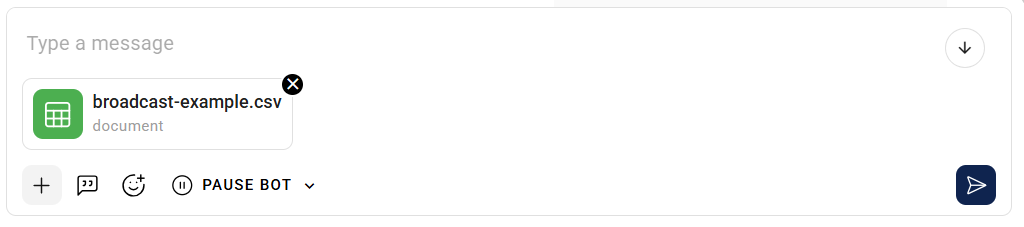
Send messages from the composer in the active conversation.
You can:
- Upload media - Attach supported images or files.
- Use quick replies - Insert saved replies for common responses.
- Use emojis - Add emojis to personalize your response.
- Pause or unpause bot - Pause automation before replying manually, then resume it when the manual interaction is complete.
- Send message - Press Enter or click send to deliver your message.
TIP
Pause the bot before replying manually so automated and agent responses do not overlap.
Use Chat operations for the full response workflow.
Conversation actions

From the chat top bar, you can:
- Tag chat - Add tags to help organize conversations.
- Tag agent - Assign or classify chats by agent when the feature is enabled.
- Block user - Block spam or unwanted conversations.
- Call - Start a WhatsApp call when calling is enabled for your company workspace.
Failed messages
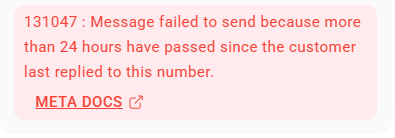
If a message fails to send, review the error shown below the message. Start with Understand message statuses before opening Meta's full error-code reference.
Filters
Filters make it easier to find the conversations you need.
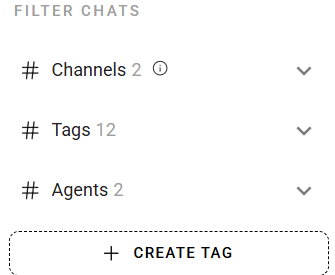
- Channels - View conversations from selected WhatsApp channels. By default, chats are shown for all channels.
- Tags - Locate chats based on assigned tags.
- Agents - Filter by agent where the agent feature is enabled.
If chats seem to be missing, filters are one of the first things to check. Use Troubleshooting if clearing filters does not help.
Agent visibility
Agent filtering and assignment can vary by company workspace.
- Managers and admins can typically view and filter all chats.
- Agents may only see chats assigned to them when restricted agent visibility is enabled.
INFO
Agent visibility is enabled on request. Default access may differ by company workspace.
For message state definitions, see Understand message statuses.