

Appearance
Team
The Team area is where admins manage company workspace access, review roles, and remove access when someone no longer needs it.
- Navigate to Team
What you can do here
- Add team members.
- Review current company members.
- Check sent invites.
- Assign the right access level.
- Remove access when required.
Role summary
| Role | Best for | Typical access |
|---|---|---|
| Admin | Workspace owners and platform leads | Full access, including team administration |
| Manager | Team leads and operations owners | Visibility across chats, stats, broadcasts, and day-to-day operations |
| Agent | Customer-facing support users | Chat-focused access with limited settings control |
Permissions may vary depending on the pricing plan and company workspace configuration.
Invite team members
Use the dedicated Manage team members guide for the full workflow.
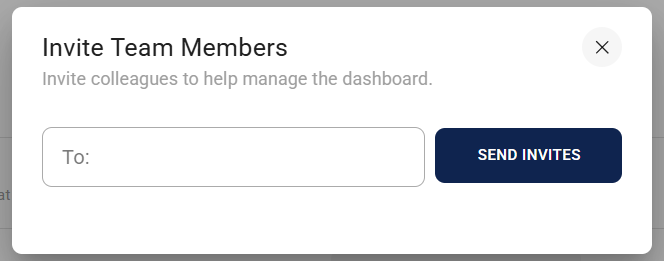
Add new members to your dashboard and give them access in a few simple steps:
- Click Add Member in the top-right corner.
- Enter one or more email addresses, then click Send Invites.
- Each invited user will receive an email with an Accept Invite link.
- After accepting:
Roles
Roles control what team members can access and do within the platform. Some capabilities may vary depending on your pricing plan.
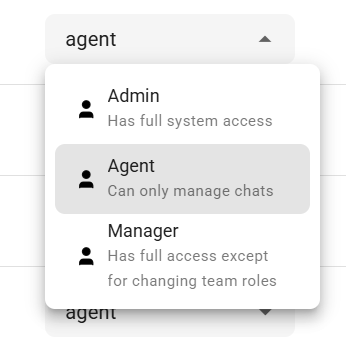
Agent
- Can manage and respond to chats.
- Has limited access to settings and administration.
Manager
- Can support daily operations across chats, broadcasts, and reporting areas.
- Typically has wider visibility than agents.
- Cannot usually remove members or change roles.
Admin
- Has full access to the company workspace.
- Can add and remove team members.
- Can manage roles and administration settings.
INFO
Removing a member does not delete their account. It only removes their access to your company.